The Debt Payoff Calculator You'll Actually Use cover
The full guide · 22 pages · PDF

The Debt Payoff Calculator You'll Actually Use

A step-by-step guide to building an Excel workbook that shows you exactly when you'll be debt-free

Build a simple debt payoff calculator in Excel by listing each debt in its own row with columns for current balance, interest rate, minimum payment, and extra payment. Add a formula that reduces the balance each month by your payment minus that month's interest charge (balance × rate ÷ 12). Copy those rows down for 60 or 84 months and Excel will show you the exact month each debt hits zero. Add a running total column and you have a live progress tracker you can update every payday.

Get the guide — free

What's inside

01
Blueprint: The Complete Column-by-Column Architecture
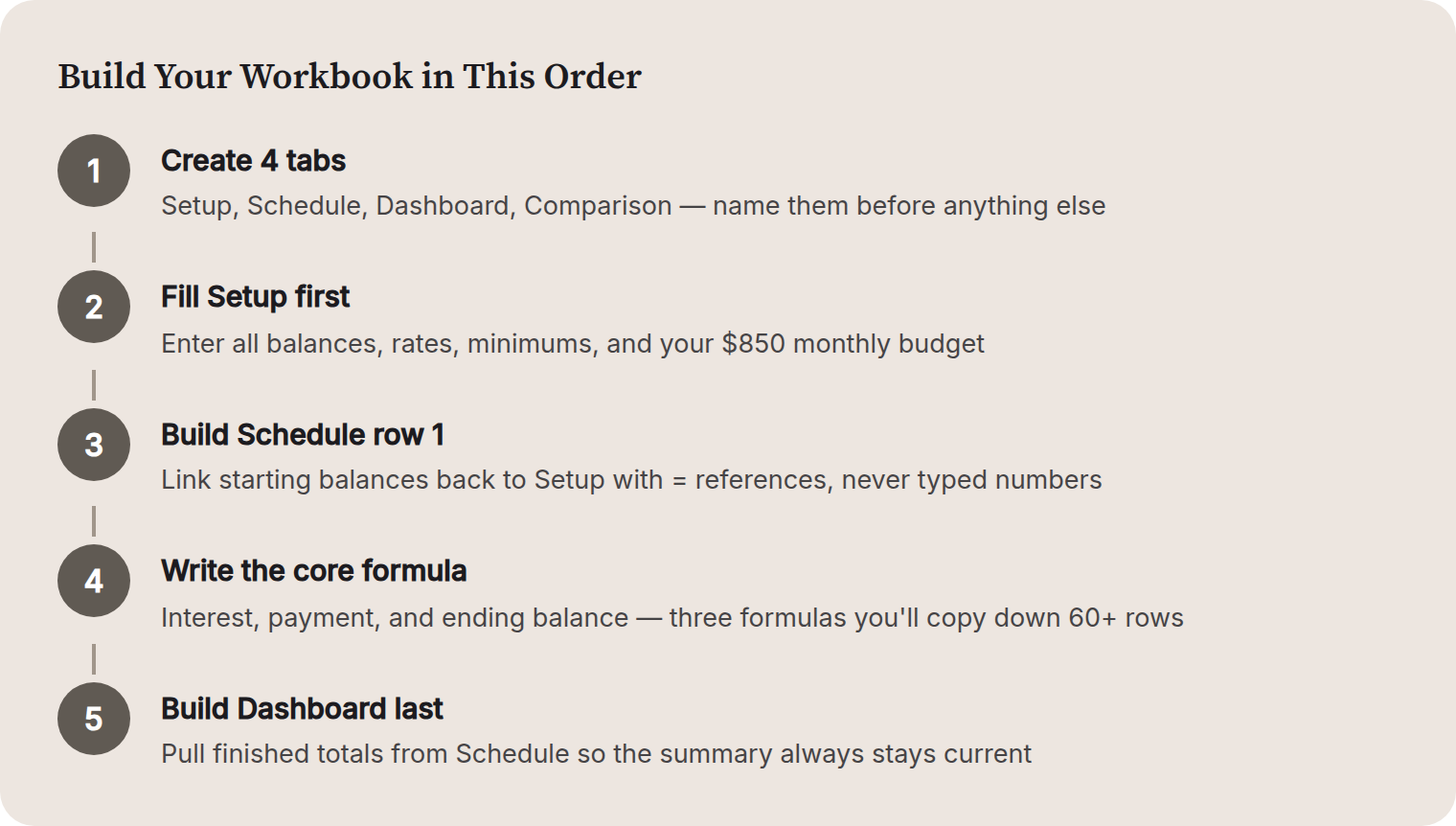
Four tabs, one job each: Setup, Schedule, Dashboard, Comparison. Build in that order.
02
Formula Deep-Dive: Interest, Payments, and Balance Reduction
Three formulas run the whole engine: monthly interest (balance × monthly rate), payment made (with IF logic for payoff protection), and ending balance (starting + interest − payment).
03
Worked Scenarios: Avalanche vs. Snowball on the Same $23,000
On this $23,000 example, the avalanche saves $1,214 and finishes two months faster. The snowball gives you a paid-off debt by Month 10.
04
The Extra-Payment Slider: What $50 or $100 More Actually Does
An extra $100/month on the $23,000 avalanche plan saves $1,176 in interest and cuts five months off the timeline.
05
The Progress Dashboard: A One-Page View That Updates Itself
Every cell on the Dashboard pulls from Schedule or Setup — if you ever find yourself typing a dollar amount on the Dashboard, stop and make it a formula instead.
06
Troubleshooting, Monthly Check-Ins, and Useful Upgrades
Circular reference errors almost always mean a formula is referencing its own output row. Use Formulas → Error Checking → Circular References to find the exact cell.

Plus 2 fill-in worksheets and a 12-step action checklist.

A page from the guide
Infographic from the guide

Who it's for

Someone carrying multiple debts — credit cards, a car loan, maybe a personal loan — who is tired of feeling like they are making payments but never making progress. They have opened a spreadsheet before but stared at a blank grid and closed it. They want something concrete: a calculator they can plug their real balances and interest rates into and finally see a finish line. They are worried they are paying too much interest, unsure whether to attack the smallest balance or the highest rate first, and desperate for proof that the debt will actually end someday.

Questions

What if my minimum payment changes every month?
Hold it constant at the current amount. Most credit card minimums shrink as the balance drops, so keeping your payment fixed means you are paying more than required as time goes on. That only helps you pay off faster.
How do I handle a debt with a 0% promotional rate that expires?
Create two phases in the amortization block. Run the first section with a rate of 0% until the promo end month, then switch the rate to the go-to rate for the remaining rows. This shows you exactly what happens if you do not clear the balance before the offer expires.
Should I include my mortgage in this tracker?
You can, but I would keep it on a separate tab. Mortgages span 15 to 30 years and behave differently from revolving credit. Mixing them with credit cards makes the chart harder to read and the progress feel slower than it actually is.
What if I can only afford minimum payments right now?
Build the sheet with zero in the extra payment column. Seeing the payoff date, even if it is uncomfortable, is better than not knowing. It also gives you a clear target — if you can find even $30 extra, you will see the date move, which is motivating.
Does this work in Google Sheets instead of Excel?
Yes, the formulas are identical. Google Sheets uses the same syntax for multiplication, division, and cell references. The only difference is how you insert a chart, and that is a right-click away in either program.